


FOR ALL YOUR TV/AV, AERIAL & SATELLITE REQUIREMENTS
30 Clovelly Rise, Lowestoft, Suffolk, NR32 4EN


Installations & Repairs Today
Call 01502 573400 to book an engineer.

Guaranteed Picture Improvement
Call Now on 01502 573400

We can help today
Call 01502 573400 to book a visit

We can help today
Call 01502 573400 to book a visit


Watch All Your Favourite TV Shows with the highest quality results.
Satellite TV is as popular as ever. With an increasing amount of options available more and more people are choosing to opt for a move to a satellite TV viewing.
Without a new satellite dish it isn't possible for many households to gain access to these subscriptions to watch all the new exciting shows that are being released.
We can help with any satellite dish installation or repair for Sky, Freesat and European tv to help you to gain access to these great new TV shows and services.
All work is insured and we are fully trained with over 25 years experience.
And for added peace of mind, all work is backed by a 1yr guarantee should anything go wrong, we'll be here to help

Installations & Repairs
We are here to help....
SAME DAY SERVICE AVAILABLE*

Call 01502 573400
If you are frustrated with the lack of programmes on your TV and have chosen to purchase satellite TV for your home, then we are ready to fit and install it for you in Lowestoft & Surreounding area areas.
We have over 25yrs years of experience fitting SKY and Freesat Dishes correctly and neatly, and will always recommend the best Dish for your location and situation.
If you don’t like the sight of a Dish on your home or premises then we have a selection of brackets that can assist with a discrete Dish installation.
We always ensures every Dish installation is carried out is to the highest standards.
We can also repair and replace existing SKY and Freesat installations on your home.
Replacing rusted Dishes, replacing LNB’s replacing leaking cables, etc are all part of the service our Freesat dish repair.
If your picture keeps breaking up or freezing then get in touch as we can help.
Non-standard InstallsPole Mounted DishesOcto LNBSpecial HeightsMulti-room InstallsSky LinkSKY+HDSky Q Dish InstallationsMagic EyeSky DishCommunal SystemsFreesat DishSpecial HeightsRe-alignmentEuropean Satellite DishesListed BuildingsFaulty LNBTwin Sat CablesRoof InstallationsSky QTree in Line of Sight
Sky Q Problems?
SAME DAY SERVICE AVAILABLE

CALL NOW
01502 573400
Why wait for Sky
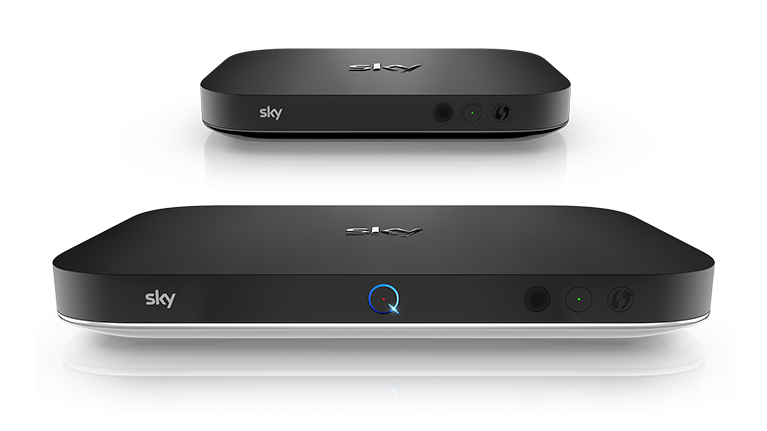
Is your Main Sky Q box acting up? Don’t Fret we offer a Same Day Service to help you quickly at the best rates please call us on 01502 573400
If however you want to try yourself
This guide will walk you through various methods to reset your Sky Q box, helping you resolve common issues and get back to enjoying your favourite programmes. From simple restarts to more advanced reset options, we’ve got you covered.
Your Sky Q box is a sophisticated piece of technology, but like all devices, it can occasionally encounter hiccups. Whether you’re experiencing signal problems, frozen screens, or other operational glitches, a reset can often work wonders. Let’s dive into the world of Sky Q troubleshooting and explore the different ways to breathe new life into your entertainment hub.
Understanding Your Sky Q Box
Before we delve into reset procedures, it’s crucial to understand what your Sky Q box is and how it functions. This knowledge will help you appreciate why resets are sometimes necessary and how they can resolve various issues.
The Sky Q box is more than just a satellite receiver; it’s a comprehensive entertainment system. It combines traditional TV services with streaming capabilities, on-demand content, and smart features. This complexity means that occasionally, the system might need a refresh to maintain optimal performance.
Your Sky Q box constantly updates itself, downloads programme information, and manages recordings. Over time, temporary files can accumulate, settings might become misaligned, or the system may encounter conflicts that affect its performance. This is where resets come in handy, clearing out the cobwebs and giving your box a fresh start.
Understanding the different components of your Sky Q system is also important. There’s the main box, which is the heart of the system, and potentially mini boxes for other rooms. Each of these may require different approaches when it comes to resetting or troubleshooting.
Common Issues That May Require a Reset
Before we jump into reset procedures, let’s identify some common issues that might prompt you to reset your Sky Q box. Recognising these problems can help you determine when a reset is necessary and which type of reset might be most effective.
One frequent issue is a frozen or unresponsive screen. You might find that your Sky Q box is stuck on a particular channel or menu, refusing to respond to remote commands. This can be frustrating, especially if you’re in the middle of watching your favourite show.
Another common problem is signal loss. You might see error messages indicating that your box can’t receive a satellite signal, resulting in a blank screen or choppy playback. While this can sometimes be due to external factors like weather, a reset can often resolve internal signal processing issues.
Audio problems are another category of issues that might benefit from a reset. You might experience no sound, intermittent audio, or a mismatch between the audio and video.These can often be resolved by resetting the box’s audio settings or performing a full system reset.
Sometimes, you might notice that your recordings are not functioning correctly. The box might fail to record scheduled programmes, or you might have trouble accessing your recorded content. A reset can often clear up these issues by refreshing the system’s recording management.
Lastly, performance issues like slow menu navigation, delayed response to remote commands, or apps that won’t load properly can often be improved with a reset. These problems typically arise from accumulated temporary data or minor software glitches that a reset can clear out.
Basic Restart: The First Step
When you encounter issues with your Sky Q box, a basic restart should be your first port of call. This simple procedure can often resolve minor glitches without the need for more drastic measures.
To perform a basic restart, begin by locating the standby button on your Sky Q remote. Press this button to turn off your Sky Q box. You’ll know it’s off when the front LED light turns red. Wait for about 30 seconds to ensure the system has fully shut down.
After the waiting period, press the standby button again to turn the box back on. You should see the front LED light turn blue, indicating that the box is powering up. This process can take a minute or two, so be patient.
During this restart, your Sky Q box will reload its software and clear any temporary data that might be causing issues. It’s a bit like giving your box a quick nap – it wakes up refreshed and ready to go.
If you find that the remote isn’t responding, you can perform this restart manually. Simply unplug the power cable from the back of the Sky Q box, wait for 30 seconds, and then plug it back in. This achieves the same result as using the remote.
Remember, a basic restart won’t affect your recordings or settings. It’s a safe, non-invasive way to troubleshoot minor issues. If this doesn’t resolve your problem, don’t worry – we have more advanced reset options to explore.
Power Cycling: A More Thorough Approach
If a basic restart doesn’t solve your issue, the next step is power cycling. This method is slightly more thorough and can resolve a wider range of problems. Power cycling involves completely disconnecting your Sky Q box from its power source, allowing it to fully discharge before restarting.
To power cycle your Sky Q box, start by pressing the standby button on your remote to turn off the box. Once the LED light turns red, unplug the power cable from the back of the box or from the wall socket. It’s important to unplug the cable rather than just turning off a power strip, as some residual power may remain otherwise.
Leave your Sky Q box unplugged for at least one minute. This duration allows any residual charge in the system’s capacitors to dissipate fully. This complete power-down can clear out more stubborn software glitches that a simple restart might not address.
After the waiting period, plug the power cable back in. You should see the front LED light turn blue as the box powers up. Allow a few minutes for the system to fully restart and reload all necessary software components.
Power cycling can be particularly effective for resolving issues related to signal reception, menu freezes, or general sluggishness in the system’s performance. It gives your Sky Q box a chance to start fresh, potentially clearing out any temporary data or settings that might be causing problems.
If you have any Sky Q mini boxes, it’s a good idea to power cycle these as well. The process is the same – unplug them for a minute, then plug them back in. This ensures your entire Sky Q system gets a thorough refresh.
Resetting Network Settings
If you’re experiencing connectivity issues with your Sky Q box, such as problems with on-demand content or difficulties connecting to your home network, resetting the network settings might be the solution. This process will clear out any potentially problematic network configurations and allow you to set up your connection afresh.
To reset your network settings, start by pressing the Home button on your Sky Q remote. Navigate to the Settings menu, then select Setup, followed by Network. Here, you’ll find an option to Reset your network settings.
When you select this option, your Sky Q box will clear all saved network information. This includes Wi-Fi passwords, IP addresses, and any custom network configurations you might have set up. After the reset, your box will restart.
Once your Sky Q box has restarted, you’ll need to reconnect it to your home network. If you’re using a wired connection, simply ensure the Ethernet cable is securely connected. For Wi-Fi users, you’ll need to select your network and enter the password again.
This reset can be particularly useful if you’ve recently changed your router or if you suspect there might be conflicts in your network settings. It gives your Sky Q box a clean slate for establishing a fresh connection to your home network.
Remember, resetting network settings won’t affect your recordings or most of your Sky Q settings. It’s focused specifically on clearing out network-related configurations.
Factory Reset ; The Nuclear Option
When all else fails, a factory reset is the most comprehensive way to troubleshoot your Sky Q box. This option should be considered a last resort, as it will erase all personalised settings and return your box to its original, out-of-the-box state.
To perform a factory reset, you’ll need to access a hidden menu on your Sky Q box. Start by pressing the Home button on your remote. Navigate to the Settings menu, but don’t select it. Instead, with Settings highlighted, press the following sequence on your remote: 0, 0, 1, Select.
This will open a hidden menu with several options. Look for ‘Factory Reset’ or ‘Reset Settings’. Be very careful here, as there may be other reset options that could erase your recordings. Unless you’re absolutely sure you want to delete everything, stick to the ‘Reset Settings’ option.
When you select this option, your Sky Q box will ask for confirmation. This is your last chance to back out, so make sure you’re certain before proceeding. If you confirm, your box will begin the reset process.
A factory reset will clear all personalised settings, including:
Favourite channels
Parental controls
Network settings
Audio and video preferences
Any apps you’ve downloaded
It’s important to note that a factory reset will not erase your recordings or series links. These are stored separately and should remain intact.
After the reset, your Sky Q box will restart and guide you through the initial setup process, just as it did when you first installed it. You’ll need to reconfigure your preferences, reconnect to your network, and set up any additional features you use.
Resetting Your Sky Q Remote
Sometimes, the issue might not be with your Sky Q box itself, but with the remote control. If you’re having trouble with your remote, resetting it can often resolve the problem.
To reset your Sky Q touch remote, start by removing the batteries. Leave the batteries out for at least a minute. This allows any residual charge in the remote’s circuitry to dissipate.
While the batteries are out, press and hold every button on the remote for a few seconds. This helps to reset the remote’s internal components. After doing this, reinsert the batteries.
Once the batteries are back in, you’ll need to re-pair your remote with your Sky Q box. To do this, press and hold the 1 and 3 buttons simultaneously until the remote’s light flashes amber four times. This indicates that the remote is in pairing mode.
Now, bring the remote close to your Sky Q box and press the Select button. The box should recognise the remote and pair with it. You’ll see a message on your TV screen confirming that the pairing was successful.
If you have a Sky Q non-touch remote, the process is similar, but you’ll press and hold the 7 and 9 buttons instead of 1 and 3 to enter pairing mode.
Resetting your remote can resolve issues like unresponsive buttons, erratic behaviour, or problems with the touch sensitivity on touch remotes. It’s a simple process that can often save you from needing to replace your remote entirely.
Troubleshooting Post-Reset Problems
After performing a reset, whether it’s a simple restart or a full factory reset, you might encounter some issues as your Sky Q box reconfigures itself. Don’t panic – this is normal, and most post-reset problems can be easily resolved.
One common issue is that your Sky Q remote might stop working after a reset. This is usually because the remote has lost its pairing with the box. To fix this, follow the remote resetting procedure outlined in the previous section.
Another potential problem is that your box might struggle to find a satellite signal after a reset. If this happens, navigate to Settings > Setup > Satellite settings. From here, you can run a signal test or try reacquiring the satellite signal.
If you’ve performed a factory reset, you might find that your recordings are no longer visible. Don’t worry – they should still be there. Sometimes it takes a while for the box to reindex all your recorded content. Give it some time, and your recordings should reappear.
Network connectivity issues are also common after a reset. If your box isn’t connecting to your home network, try running through the network setup process again. Make sure you have your Wi-Fi password handy if you’re using a wireless connection.
Lastly, if you use any Sky Q mini boxes, you might need to re-establish the connection between these and your main box. This usually happens automatically, but if it doesn’t, you can manually reconnect them through the Settings menu.
Remember, it’s normal for your Sky Q box to take some time to fully reconfigure itself after a reset. Be patient, and don’t hesitate to contact Sky support if you encounter any persistent issues.
When To Contact Sky Support
While the reset procedures we’ve discussed can resolve many common issues, there are times when you might need to reach out to Sky’s customer support team. Knowing when to call in the professionals can save you time and frustration.
If you’ve tried all the reset options and your Sky Q box is still not functioning correctly, it’s time to contact Sky. This is especially true if you’re experiencing hardware-related issues like persistent pixelation, complete signal loss, or problems with the box’s physical ports.
Another scenario where Sky support can be invaluable is if you’re encountering error messages that you don’t understand. Sky’s technicians are familiar with all the error codes and can provide specific guidance based on the message you’re seeing.
If you’ve recently had a Sky Q system installed and you’re experiencing issues, don’t hesitate to contact support. They can check if there were any problems with the installation that might be causing your current issues.
Recurring problems are also a good reason to reach out to Sky. If you find yourself needing to reset your box frequently, there might be an underlying issue that requires professional attention.
Lastly, if you’re unsure about performing any of the reset procedures we’ve discussed, it’s always better to ask for help. Sky’s support team can guide you through the process or advise you on the best course of action for your specific situation.
Remember, Sky Q is a complex system, and there’s no shame in seeking expert help when you need it. The support team is there to ensure you get the best possible experience from your Sky Q service.
Maintaining Your Sky Q Box
Prevention is often better than cure, and this certainly applies to your Sky Q box. Regular maintenance can help prevent issues and reduce the need for frequent resets. Here are some tips to keep your Sky Q box running smoothly:
Keep it cool: Ensure your Sky Q box has plenty of ventilation. Overheating can cause various issues and shorten the lifespan of your device. Don’t stack other devices on top of it, and make sure it’s in a well-ventilated area.
Regular restarts: Even if you’re not experiencing problems, it’s a good idea to restart your Sky Q box once a month. This helps clear out temporary files and keeps the system running efficiently.
Update regularly: Sky Q boxes usually update automatically, but sometimes they might need a nudge. Check for updates in the Settings menu and install them promptly.
Clean carefully: Dust can accumulate in the vents of your Sky Q box, potentially causing overheating. Gently clean the exterior and vents with a dry cloth or a can of compressed air.
Check connections: Regularly inspect the cables connected to your Sky Q box. Ensure they’re securely plugged in and not damaged.
Protect from power surges: Consider using a surge protector to shield your Sky Q box from potential electrical damage.
Manage storage: Keep an eye on your storage space. If your box is nearly full, consider deleting old recordings or transferring them to an external drive.
Use standby mode: When you’re not using your Sky Q box, put it in standby mode rather than leaving it on continuously. This gives the system a chance to perform maintenance tasks and update itself.
By following these maintenance tips, you can help ensure your Sky Q box stays in top condition, reducing the likelihood of issues and the need for resets.
Conclusion
Resetting your Sky Q box doesn’t have to be a daunting task. From simple restarts to more comprehensive factory resets, you now have the knowledge to troubleshoot a wide range of issues. Remember to start with the least invasive options and work your way up to more drastic measures only if necessary.
Regular maintenance and timely resets can keep your Sky Q box running smoothly, ensuring you get the best possible viewing experience. And when in doubt, don’t hesitate to reach out to Sky’s support team for expert assistance.
By understanding your Sky Q box and how to reset it effectively, you’re well-equipped to handle most issues that may arise. Here’s to uninterrupted, high-quality entertainment with your Sky Q system!
European Satellite
SAME DAY SERVICE AVAILABLE
European satellite installation service, Dave is ready and waiting to give you the best possible service






CALL NOW
01502 573400
Do you want to watch Spanish La Liga football live from the comfort of your own home? Or, catch the latest French language film? Maybe you would like to catch up on current affairs in Germany? Well, We have a solution for you.
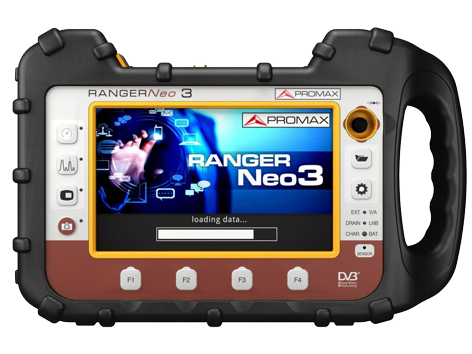
We can align your satellite and set up your European satellite receiver to give you full access to a host of satellite TV providers in Europe
DAB Digital
Why choose us?
Dave Provides a wide range of television services including Aerial and Satellite installations in Residential properties and businesses in Lowestoft and surrounding areas.


We Love to hear what our customers think...
Click below to leave us a review...

Satellite Installer Lowestoft | Satellite Installer Oulton Broad | Satellite Installer Corton | Satellite Installer Somerleyton | Satellite Installer Gunton | Satellite Installer Pakefield | Satellite Installer Kessingland | Satellite Installer Carlton Colville | Aerial Installer North Cove| Satellite Installer Barnby | Satellite Installer Beccles | Satellite Installer Kirkley | Satellite Installer Hopton on Sea | Satellite Installer Gorleston | Satellite Installer Bungay | Satellite Installer Halesworth| Satellite Installer Great Yarmouth | Satellite Installer Caister on Sea | Satellite Installer Blundeston | Satellite Installer Southwold | Satellite Installer Belton | Satellite Installer Burgh Castle